HEIF/HEIC to PDF: The Fastest Way to Send iPhone Photos as Professional Documents
Struggling with HEIC format rejection on job portals and government websites? Learn how to convert iPhone photos to PDF instantly with no uploads or installations.
You're applying for your dream remote job. You've spent hours perfecting your resume. You open your iPhone, snap a photo of your certificate, and hit upload. Then this happens:
"Error: File format not supported. Please upload JPG or PDF."
Sound familiar? You're not alone. Every day, thousands of iPhone users face this exact frustration when government portals, job application sites, and business systems reject HEIC (High Efficiency Image Container) files.
Let me show you how to fix this, permanently, in under 30 seconds. No software installation. No file uploads. No technical skills required.
Why Does This Happen? (The HEIC Problem)
Since iOS 11, Apple started using HEIF/HEIC format for photos. It's brilliant technology. Your photos take up 50% less space while maintaining the same quality.
If you want the technical background, Apple documents HEIF support in its official guide on HEIF and HEVC media formats.
But here's the catch: Most systems outside the Apple ecosystem don't recognize HEIC files. When you try to upload an iPhone photo to:
- Government job portals (USAJOBS, state employment sites)
- Online visa applications
- University admission systems
- Professional licensing boards
- Insurance claim forms
- Real estate rental applications
...they flat-out reject it.
And here's what makes it worse: You can't see the problem until it's too late. On your iPhone, the photo looks perfect. But the moment you try uploading it from a non-Apple system, you're blocked.
The Old Way vs. The PDFJar Way
Let's be honest about how people currently "solve" this:
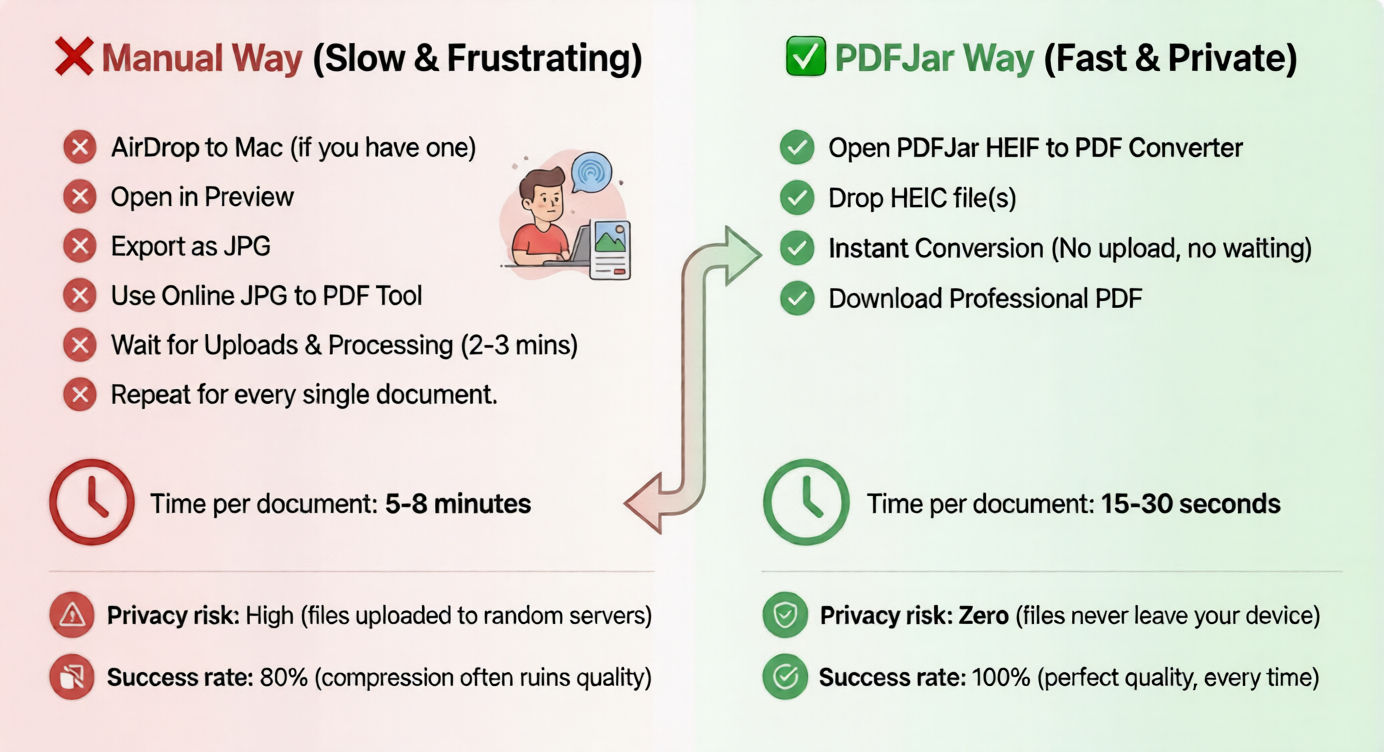
❌ Manual Way (Slow & Frustrating)
- AirDrop the HEIC photo to your Mac (if you have one)
- Open it in Preview
- Export as JPG
- Use an online tool to convert JPG to PDF
- Wait 2-3 minutes for uploads and processing
- Hope the website doesn't log you out during the wait
- Repeat for every. single. document.
Time per document: 5-8 minutes
Privacy risk: High (files uploaded to random servers)
Success rate: 80% (compression often ruins quality)
✅ PDFJar Way (Fast & Private)
- Open PDFJar HEIF to PDF Converter
- Drop your HEIC file (or multiple files)
- Instant conversion. No upload, no waiting
- Download your professional PDF
Time per document: 15-30 seconds
Privacy risk: Zero (files never leave your device)
Success rate: 100% (perfect quality, every time)
Why This Matters for Remote Job Seekers
If you're applying for remote positions in 2026, you know speed is everything. The best jobs get 200+ applications in the first 24 hours.
Here's what happens when you waste 5 minutes per document:
- Employment verification: 2 documents = 10 minutes lost
- Education certificates: 3 documents = 15 minutes lost
- Professional licenses: 2 documents = 10 minutes lost
- Identity verification: 2 documents = 10 minutes lost
Total time wasted: 45 minutes
By the time you submit, 50 other candidates have already applied. In competitive job markets, being in the first 20 applicants can double your callback rate.
PDFJar cuts that time to under 5 minutes total.
Real-World Scenario: Government Portal Rejection
Last month, a user (let's call her Sarah) was applying for a federal position. The portal required:
- Driver's license (photo from iPhone)
- Proof of certification (photo from iPhone)
- Address verification (photo from iPhone)
Her first attempt: Used a "free online converter." The portal rejected all files because:
- HEIC wasn't converted properly (corrupted files)
- File sizes exceeded the 2MB portal limit
- PDFs were flagged as "non-standard format"
Her second attempt with PDFJar:
- Converted all 3 HEIC files to PDF in 40 seconds
- Used Merge PDF tool to combine them into one document (20 seconds)
- Used Compress PDF tool to get under 2MB (15 seconds)
Total time: 75 seconds. Application submitted. Job offer received 3 weeks later.
Step-by-Step: Convert HEIC to PDF (The Right Way)
Step 1: Open PDFJar HEIF to PDF Tool
Navigate to pdfjar.com/heif-to-pdf on any browser. No sign-up. No installation. No account creation.
Step 2: Drop Your HEIC Files
Click "Choose Files" or drag and drop your iPhone photos directly into the browser. You can convert:
- Single HEIC images
- Multiple HEIC images at once
- Entire folders (batch conversion)
Pro tip: If you have multiple certificates or documents, drop them all at once. PDFJar converts them simultaneously.
Step 3: Instant Conversion (Zero Upload Time)
Here's where PDFJar is different: Your files never leave your computer.
Traditional online converters upload your files to their servers (often in foreign countries), process them, then send them back. That's why they're slow and risky.
PDFJar runs entirely in your browser using WebAssembly technology. Your files stay on your device. Conversion happens instantly because there's no upload/download delay.
Step 4: Download Your PDF
Click "Download" and you're done. Your professional PDF is ready to upload anywhere.
Optional extras:
- Need one combined PDF? Use Merge PDF to combine all documents
- File too large? Use Compress PDF to reduce size without quality loss
Why Local-First Processing Matters (The Trust Factor)
Let's talk about something nobody else mentions: file privacy.
When you upload your driver's license, passport, or professional certificates to "free online converters," where do those files go?
Most terms of service include clauses like:
- "We may retain copies of uploaded files for quality improvement"
- "Third-party processors may access your data"
- "Files are deleted after 24 hours (usually)"
Translation: Your sensitive documents are sitting on someone else's server.
PDFJar's Approach: Zero-Server Architecture
Every PDF tool on PDFJar uses local-first processing:
- Files stay on your device
- Conversion happens in your browser
- No servers ever see your documents
- No file logs, and your documents are not collected.
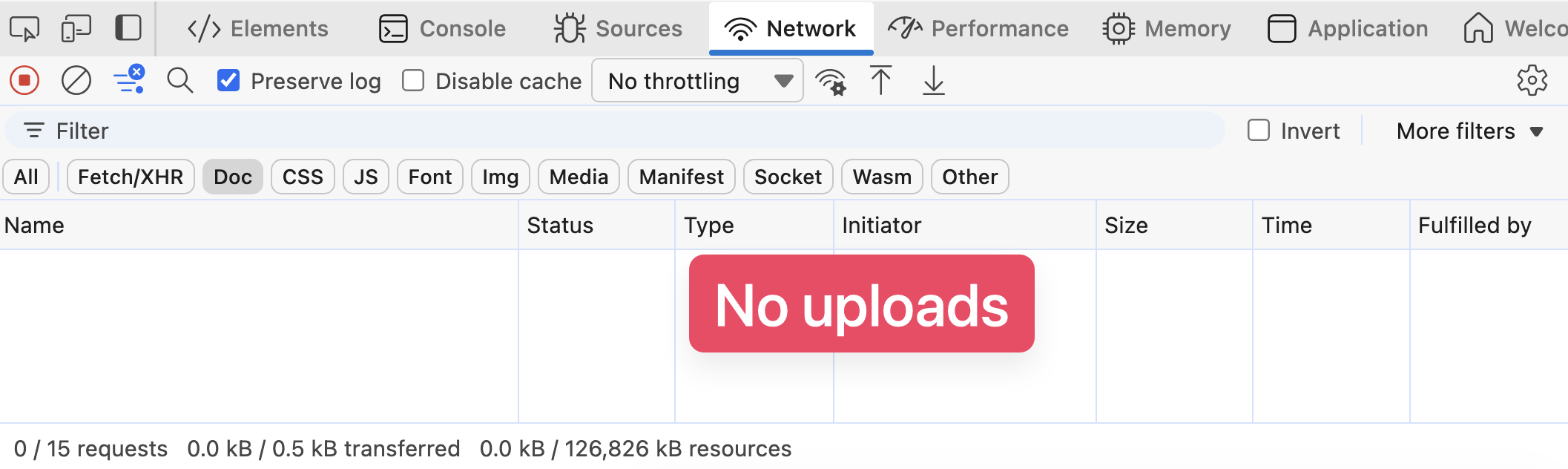
This isn't just marketing. You can verify it yourself:
- Open browser DevTools (F12)
- Go to Network tab
- Convert a file
- Watch: Zero file uploads
This is why enterprises, government contractors, and privacy-conscious professionals trust PDFJar for document processing.
Advanced: Combine Multiple iPhone Photos into One PDF
Real-world use case: You're submitting a rental application that requires:
- Driver's license (front and back) = 2 HEIC files
- Proof of employment = 1 HEIC file
- Bank statement (screenshot from banking app) = 1 PNG file
Most portals want one combined PDF, not 4 separate files.
Solution: HEIF to PDF + Merge Workflow
Total time: Under 2 minutes
- Convert all HEIC files to PDF using HEIF to PDF tool (30 seconds)
- If you have the PNG, convert it using PNG to PDF tool (10 seconds)
- Open Merge PDF tool (5 seconds)
- Drop all PDFs, arrange them in order (20 seconds)
- Download your combined professional PDF (5 seconds)
Result: One clean PDF with all documents in order. No quality loss. No file size bloat.
Bonus: Compress Without Quality Loss
Government portals and job sites often have strict file size limits:
- USAJOBS: 3MB per document
- Most university portals: 2MB per document
- Visa applications: 1-2MB per document
iPhone photos can easily exceed these limits, even after PDF conversion.
The Compression Trick
After converting HEIC to PDF, your file might be 4-5MB. Here's how to fix it without destroying quality:
- Open Compress PDF tool
- Drop your converted PDF
- Choose compression level (we recommend "High Quality")
- Download compressed PDF
Real example:
- Original HEIC: 3.2MB
- Converted to PDF: 4.1MB
- After PDFJar compression: 1.8MB
- Quality: Visually identical
This compression uses smart algorithms that preserve text clarity and photo quality while removing unnecessary data.
Comparison Table: HEIC Solutions in 2026
| Method | Speed | Privacy | Quality | Batch Support | Cost |
|---|---|---|---|---|---|
| PDFJar | ⚡ Instant | 🔒 100% Private | ✅ Perfect | ✅ Yes | Free |
| iLovePDF | 🐌 2-3 min | ⚠️ Uploads files | ✅ Good | ✅ Yes | Freemium |
| Smallpdf | 🐌 2-4 min | ⚠️ Uploads files | ✅ Good | ⚠️ Premium only | $12/mo |
| CloudConvert | 🐌 3-5 min | ⚠️ Uploads files | ✅ Good | ⚠️ Limited | Freemium |
| Mac Preview | ⚡ Fast | ✅ Local | ✅ Perfect | ❌ No | Free (Mac only) |
Key takeaway: PDFJar combines the speed and privacy of Mac Preview with the convenience of web-based tools. And it works on any device.
FAQ: Common HEIC to PDF Questions
Can I convert HEIC to PDF without losing quality?
Yes. PDFJar preserves the original image quality. HEIC files are already compressed efficiently, and PDFJar maintains that quality when converting to PDF. If you need to reduce file size afterward, use the Compress PDF tool with "High Quality" setting.
Why do job portals reject HEIC files?
HEIC is an Apple-proprietary format. Most government and corporate systems run on Windows servers that don't have built-in HEIC support. They require universal formats like PDF or JPG that any system can open.
How do I convert multiple HEIC files to one PDF?
Use our two-step process:
- Convert all HEIC files to PDF using HEIF to PDF tool
- Combine them using Merge PDF tool
Do my files get uploaded to PDFJar servers?
No. All conversion happens in your browser. Your files never leave your device. You can verify this by checking your browser's network activity. You'll see zero file uploads.
Can I use PDFJar on my iPhone directly?
Yes! PDFJar works on any device with a browser: iPhone, iPad, Android, Mac, Windows, or Linux. The conversion happens entirely in your browser, so device type doesn't matter.
What if my converted PDF is too large for upload?
Use the Compress PDF tool after conversion. It can reduce file size by 60-80% without visible quality loss. Perfect for portals with strict size limits.
Take Action Now
If you're facing HEIC rejection right now, don't waste another minute:
👉 Convert HEIC to PDF instantly (free, no upload)
Need to combine multiple documents?
👉 Merge PDF files into one document
File too large for upload?
👉 Compress PDF without quality loss
Remember: In competitive job markets and time-sensitive applications, every minute matters. The candidates who move fastest often win.
Stop fighting with file formats. Start using PDFJar.
Have questions or need help with a specific use case? Contact us or check our comprehensive FAQ page for more PDF solutions.
Get the Latest PDF Tips & Tools
Join our newsletter for privacy-focused productivity tips, new tool releases, and expert guides delivered to your inbox.
No spam. Unsubscribe anytime. Your privacy matters.